The Opportunities feature is key for pipelining new job orders from existing clients and tracking progress toward turning them into filled positions.
Key Takeaways
- Use Opportunities to track potential job orders from clients already in your system.
- Next Step action allows you to set a target date and track each step toward the job order.
- Associate an opportunity to a contact record and log activities at the contact level.
On This Page
Creating Opportunities
Opportunities can be added in various places in Avionté.
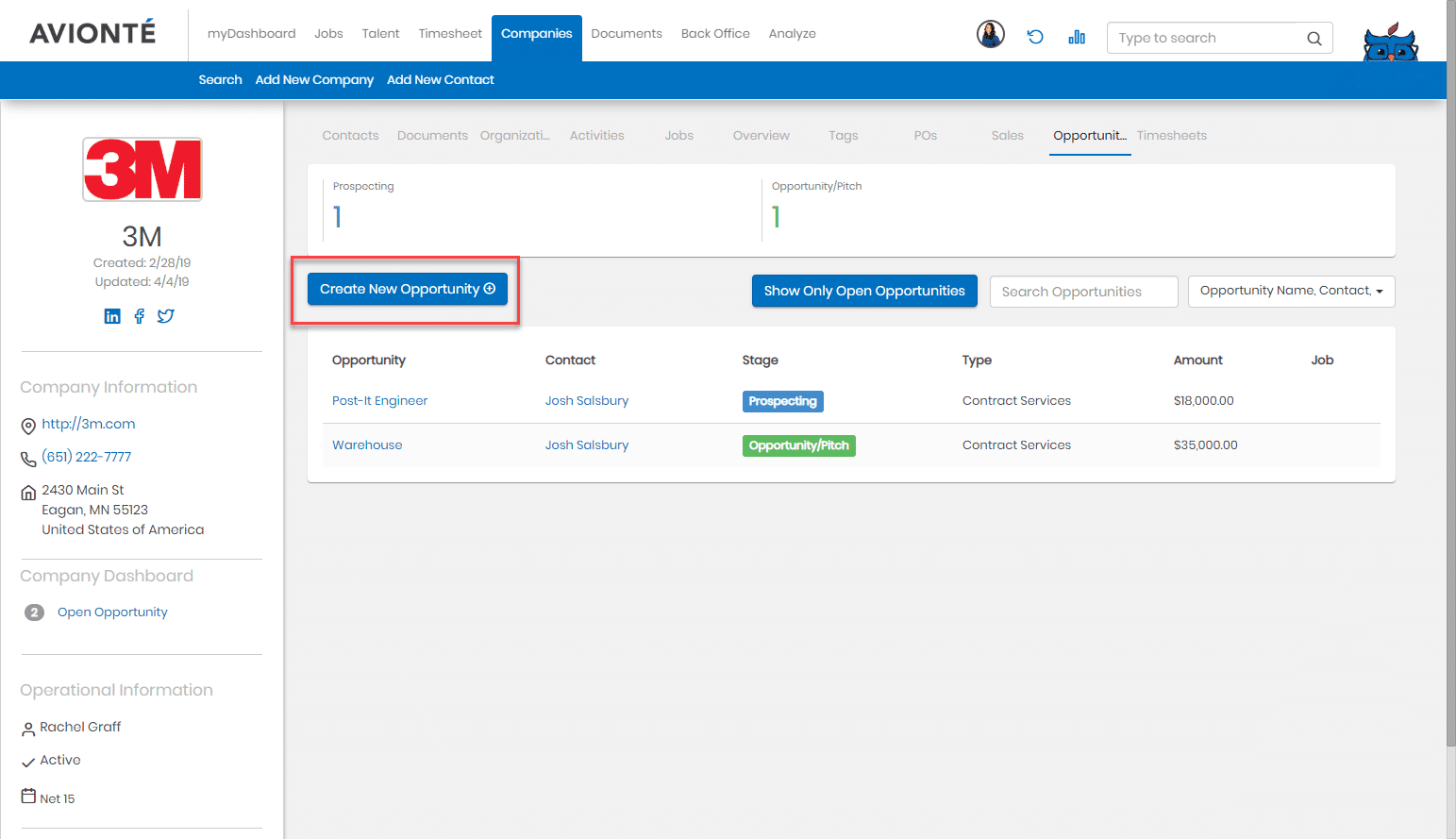
- From the Companies > Opportunities Tab
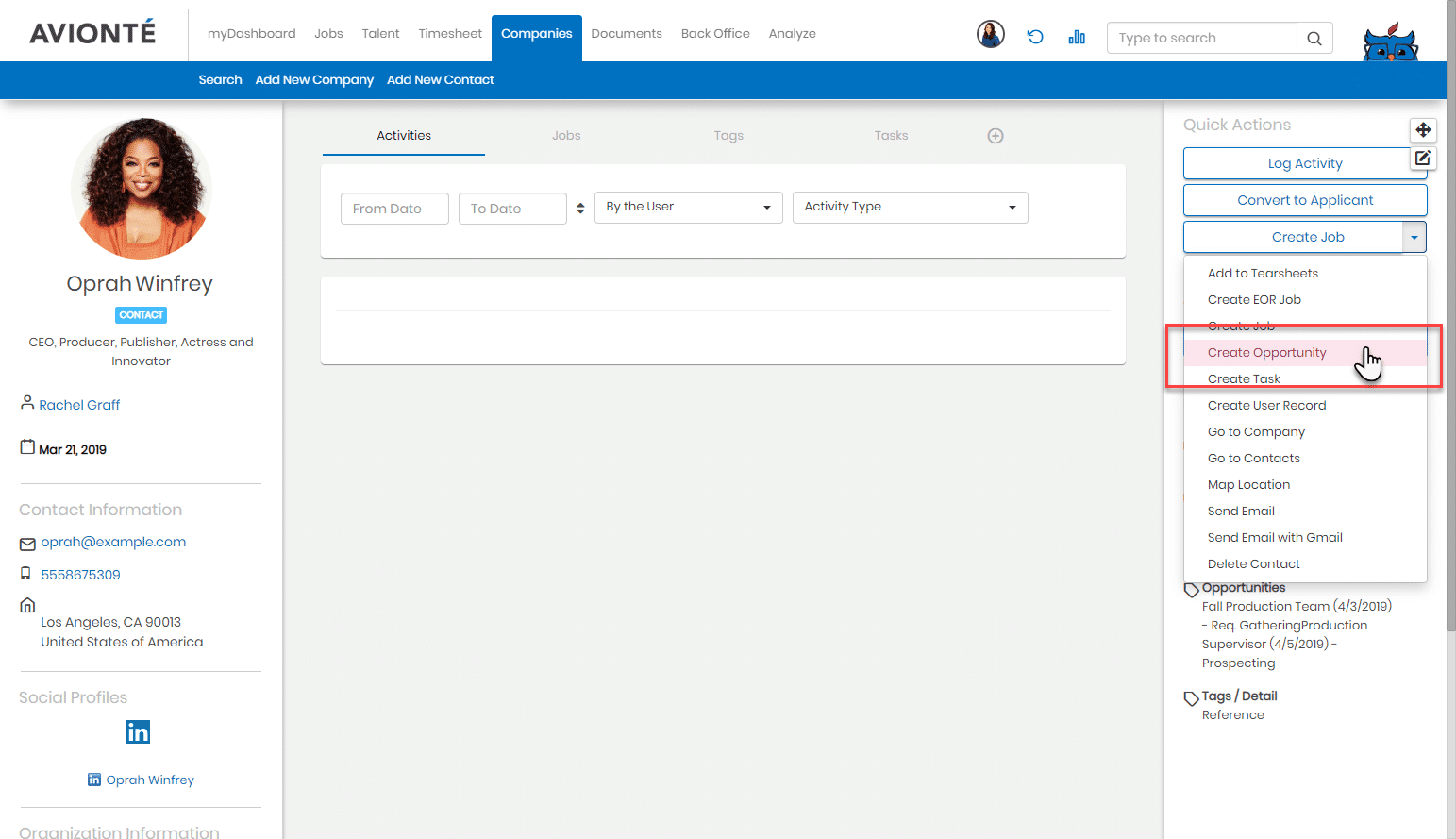
- From the Contact Activities Page under Quick Actions.
- The New Opportunity fly-out will appear
- Enter information relevant to the Opportunity
- Complete the fly-out as thoroughly as possible.
- The table below defines the fields in the New Opportunity fly-out to help with data entry
- Click Create Opportunity
| Field | Description |
| Opportunity Owners | The Opportunity Owners are the users that have been assigned primary ownership of an opportunity. When an opportunity is created, the user who created the opportunity is assigned as the owner by default. |
| Opportunity Contact | Associate the opportunity to a Contact record. Typically, the contact is the hiring manager for the positions related to the opportunity. |
| Opportunity Name | Give the opportunity a name. The best practice is to use the Job Title of the position. |
| Opportunity Type | Select a category for the opportunity from the drop-down. These Types are completely configurable in the Utilities section. |
| Current Stage | Select the stage the opportunity is on at this moment. Typically, this should be the first stage in your sales process. |
| Next Step | Indicate what needs to happen next to progress the opportunity to the next stage. |
| Next Step Date | Enter the target date by which you should complete the next step. |
| Amount | Enter the dollar amount of the total earning potential of the opportunity. |
| Commitment | This field is used to indicate the dollar amount the company has committed to so far. |
| Notes | Free-text area to enter notes about the lead. |
Opportunity Owners
The Opportunity Owner is the creator of the opportunity, which defaults to the current user, but can be changed.
- To change the owner of an opportunity, click the "edit" button in the Opportunity Overview section.
- Then select a new Owner from the dropdown list.
Opportunities can have multiple owners.
Accessing Opportunities
The Opportunity can be accessed and viewed from multiple places within BOLD.
- Company >> Opportunities
- The Company > Opportunities tab is the main hub for tracking opportunities. All Opportunities for the company are listed here, and users can click on an Opportunity name to open it.
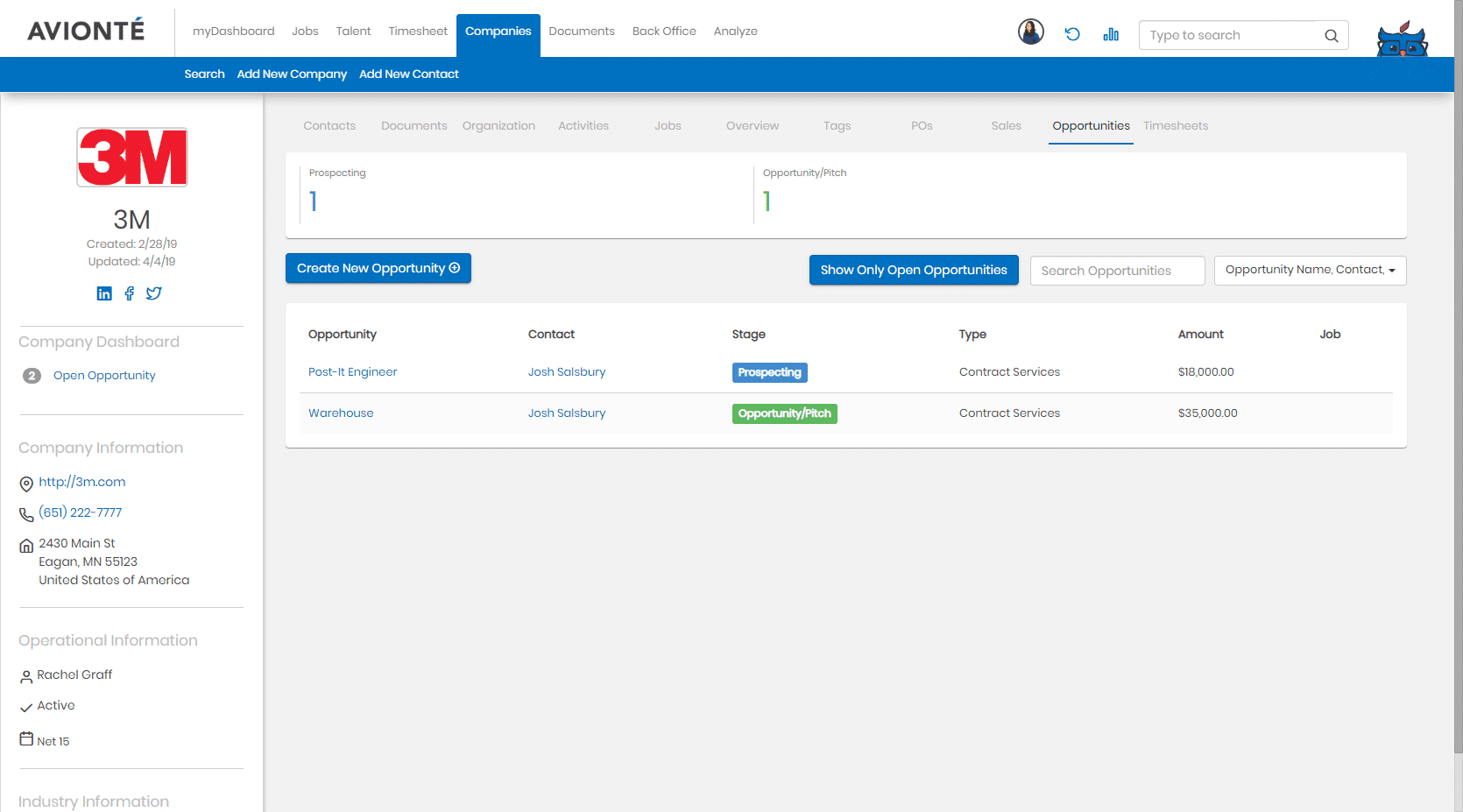
- The Company > Opportunities tab is the main hub for tracking opportunities. All Opportunities for the company are listed here, and users can click on an Opportunity name to open it.
- Company Dashboard
- On a Company's profile, a counter of open Opportunities is available on the Company Dashboard widget.
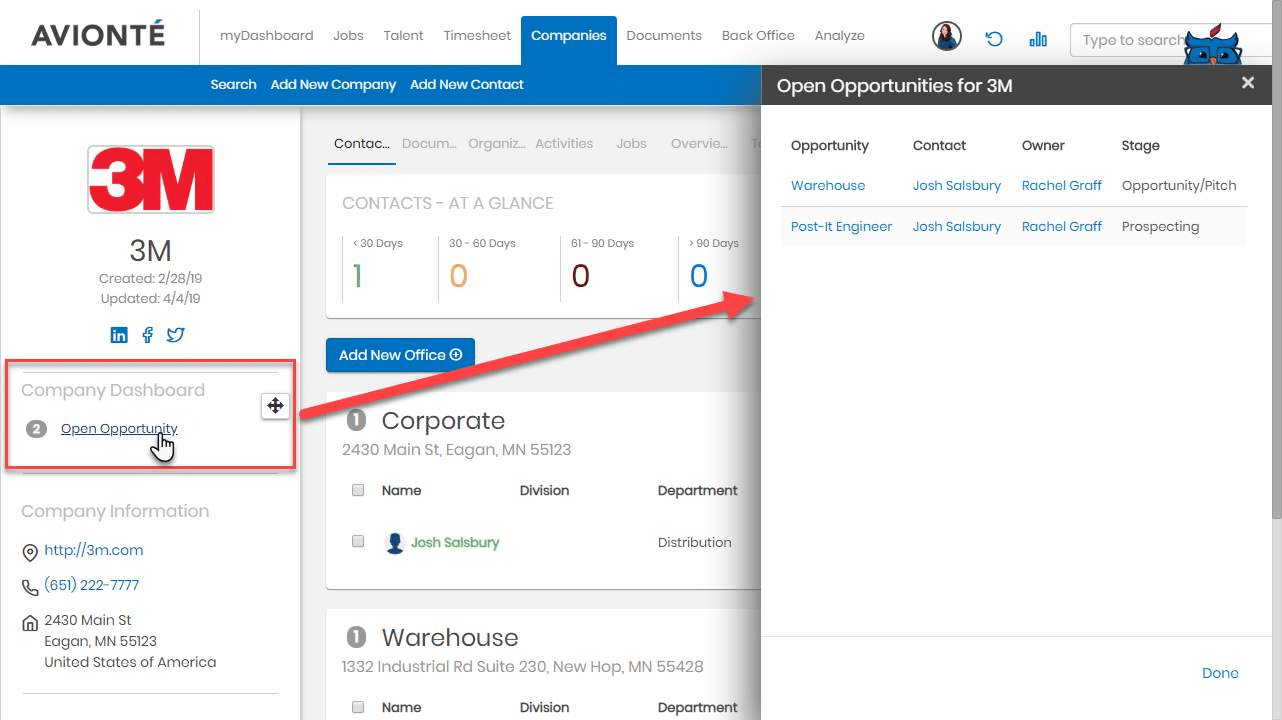
- On a Company's profile, a counter of open Opportunities is available on the Company Dashboard widget.
- Contact Page
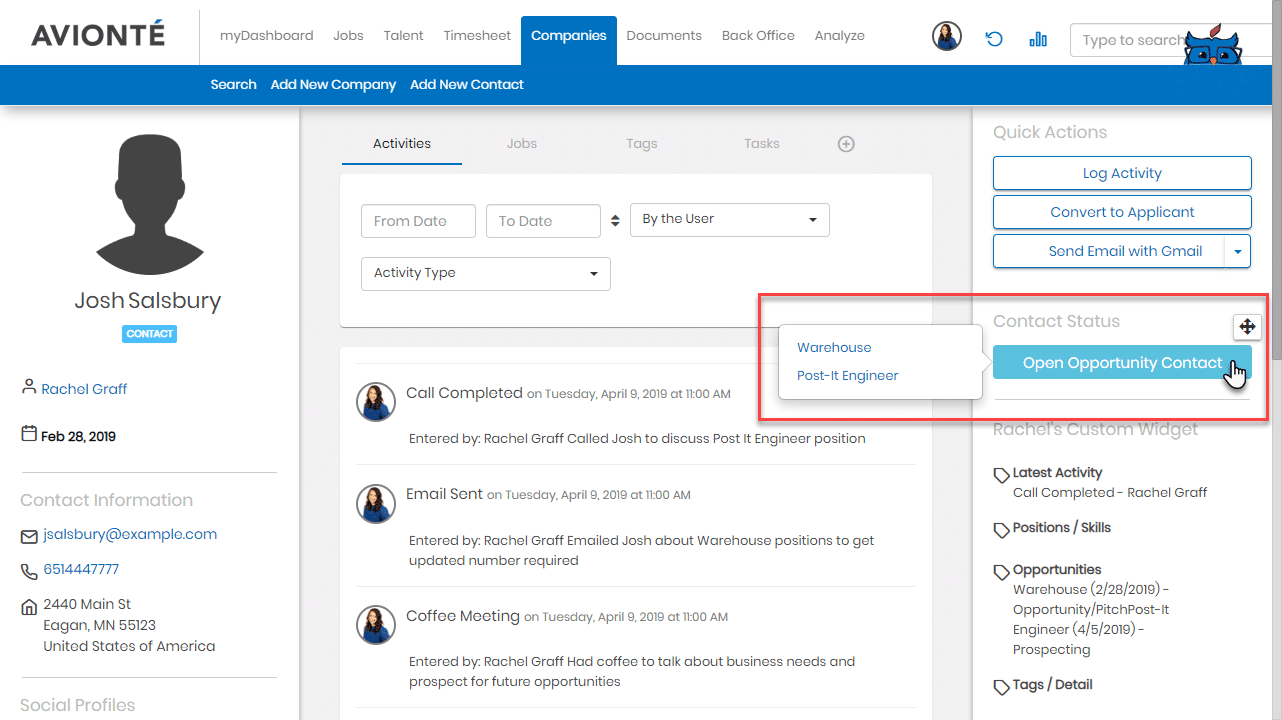
- Once a contact is connected to an Opportunity, they will be listed as an Open Opportunity Contact in their contact record.
- Hovering over the Open Opportunity Contact status will provide hyperlinks to the contact's Opportunities.
- Dashboard >> Tasks >> Opportunities
- To see a full list of opportunities, you can leverage the Tasks Tab.
- To see a full list of opportunities, you can leverage the Tasks Tab.
Opportunities Example
Turning an Opportunity into a Job
From the Opportunity Tab within the company profile, you can flip an Opportunity into a Job with ease.
- Hover over the Opportunity and a green plus sign icon appears to the right.
- Click the green plus icon to Create a Job from the opportunity. The Create Job flyout appears.
- Click the Opportunity name and click Create Job
- Proceed with creating a job.
- If you selected an Opportunity Contact when creating the opportunity, that name will appear in the Manager field for the new job.
Opportunities Report & Dashboard Widget
Opportunities Report
- Click Analyze Tab
- Search for the Opportunities Report
Opportunities Widget
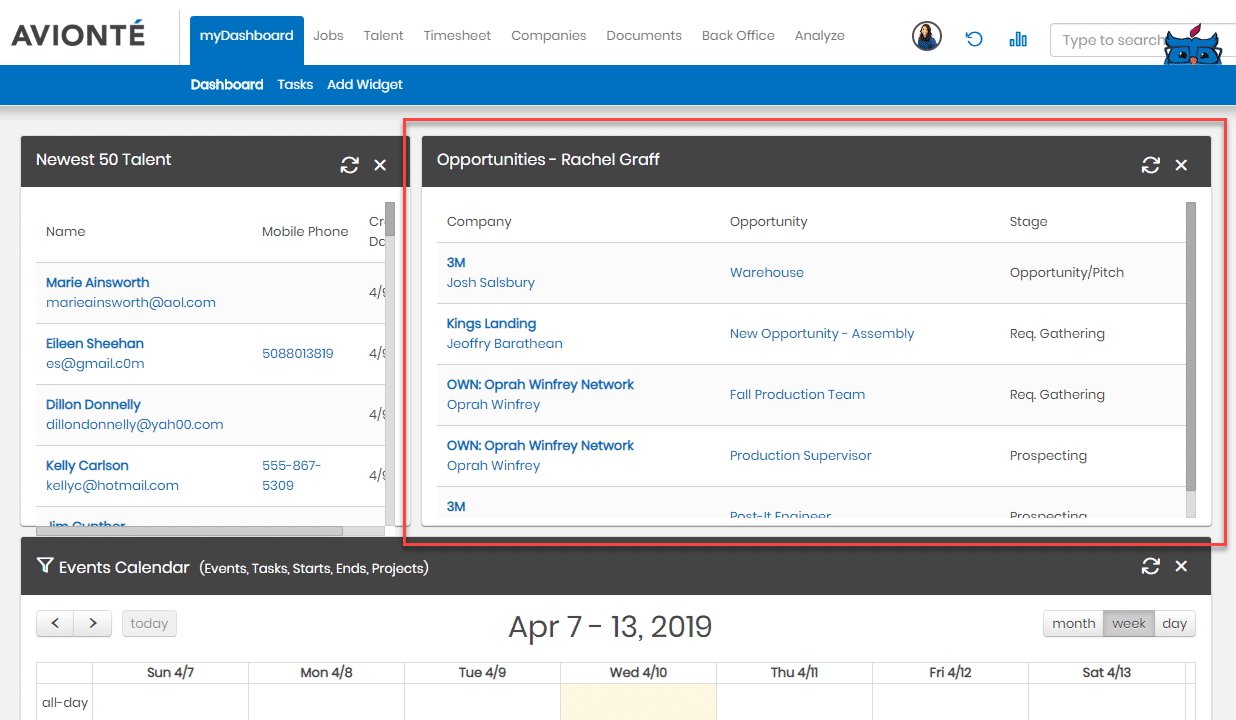
The Opportunities widget displays all opportunities on which you are the Owner. This is a great way to quickly access the Opportunities you are working.
Comments
0 commentsPlease sign in to leave a comment.